
Welcome! Login
Install the Coinmill App |
|
|
Welcome! Login
| ||
| |||
The Coinmill app can be installed on your devices and used for currency conversion even when you are not connected to the internet.
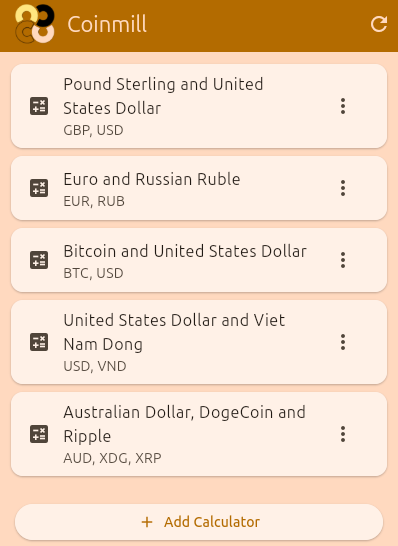
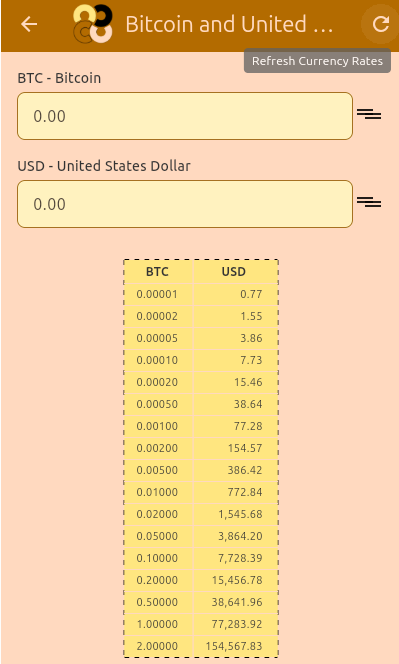
The Android version is an APK file. You install it directly, without the Google Play Store.
To update, download the newer APK and install it over the existing app. Your settings are kept.
The iPhone app is not available as a file to download and install. Use the web app instead. It works like an app once it is added to your home screen. See Progressive Web App below.
The Windows app is not available as a file to download and install. Use the web app instead. It works like an app once it is added to your home screen. See Progressive Web App below.
The macOS app is not available as a file to download and install. Use the web app instead. It works like an app once it is added to your home screen. See Progressive Web App below.
The Linux version is a single AppImage file. It runs on most distributions without installing anything.
chmod +x coinmill-linux-*.AppImage./coinmill-linux-*.AppImage.
If the AppImage will not start and mentions FUSE, install FUSE 2 for your distribution below, or run
./coinmill-linux-*.AppImage --appimage-extract-and-run to skip it.
sudo apt install libfuse2On Ubuntu 24.04 and later, if that package isn't found, use sudo apt install libfuse2t64.
sudo apt install libfuse2On Debian 13 and later, if that package isn't found, use sudo apt install libfuse2t64.
sudo dnf install fuse-libssudo pacman -S fuse2sudo zypper install libfuse2On other distributions, use your package manager to install the FUSE 2 library, which is usually named libfuse2 or fuse2.
You can run Coinmill in your browser on any phone, tablet, or computer, and add it to your home screen so it opens like an app.
Firefox on a computer cannot install web apps. To open Coinmill quickly, bookmark the Coinmill web app. To install it as an app, open the site in Chrome or Edge and follow the desktop steps above.